This section guides you through setting up, configuring, and managing the HPE SimpliVity integration in OpsRamp.
Prerequisites
- OpsRamp Classic Gateway (Linux) version 15.0.0 or later.
- OpsRamp NextGen Gateway version 15.0.0 or later.
- Valid IP Address/hostname and credentials to access HPE Simplivity Omnistack REST APIs.
- Ensure that the provided IP address/host name, port, and credentials are valid and accessible for successful integration.
- The target device must be reachable from the gateway. To verify the connectivity of the end device, use the following commands from the gateway.
- To ping the IP address specified in the configuration:
{ping <IP address>} - To test connectivity using telnet:
{telnet <IP address> <Port>}
- To ping the IP address specified in the configuration:
Configure and Install the HPE SimpliVity Integration
- From All Clients, select a client.
- Navigate to Setup > Account.
- Select the Integrations tab.
- The Installed Integrations page, where all the installed integrations are displayed. Click + ADD on the Installed Integrations page.
- If you do not have any installed applications, you will be navigated to the Available Integrations page. The Available Integrations page displays all the available applications along with the newly created application with the version.
Note: Search for the application using the search option available. Alternatively, use the All Categories option to search. - Click ADD on the HPE SimpliVity tile.
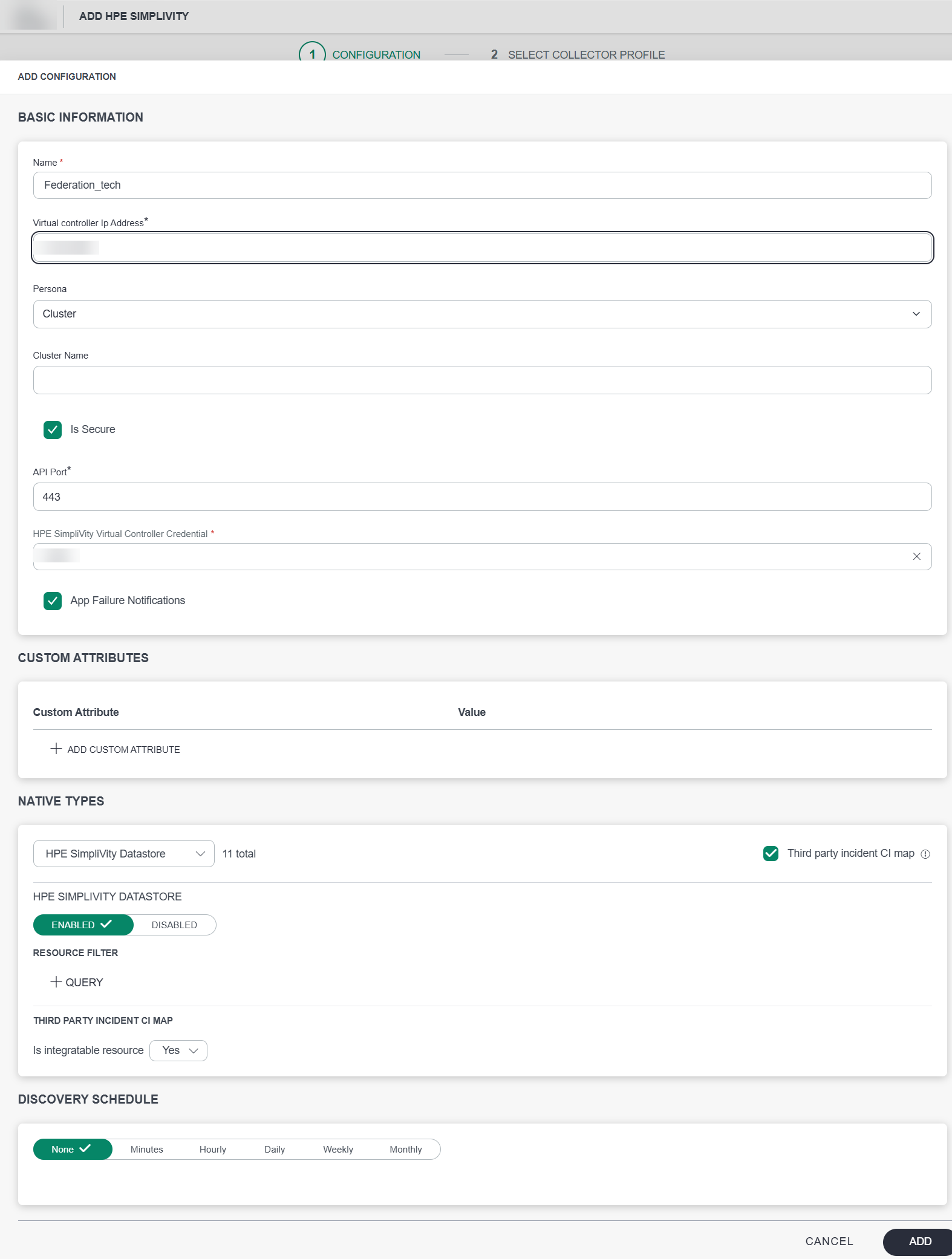
- From the Configurations page, click + ADD. The Add Configuration page appears.
- Enter the following BASIC INFORMATION:
| Functionality | Description |
|---|---|
| Name | Enter the name for the configuration. |
| Virtual controller Ip Address | Virtual controller IP address of the HPE SimpliVity. |
| Virtual controller Ip Address | Virtual controller IP address of the HPE SimpliVity. |
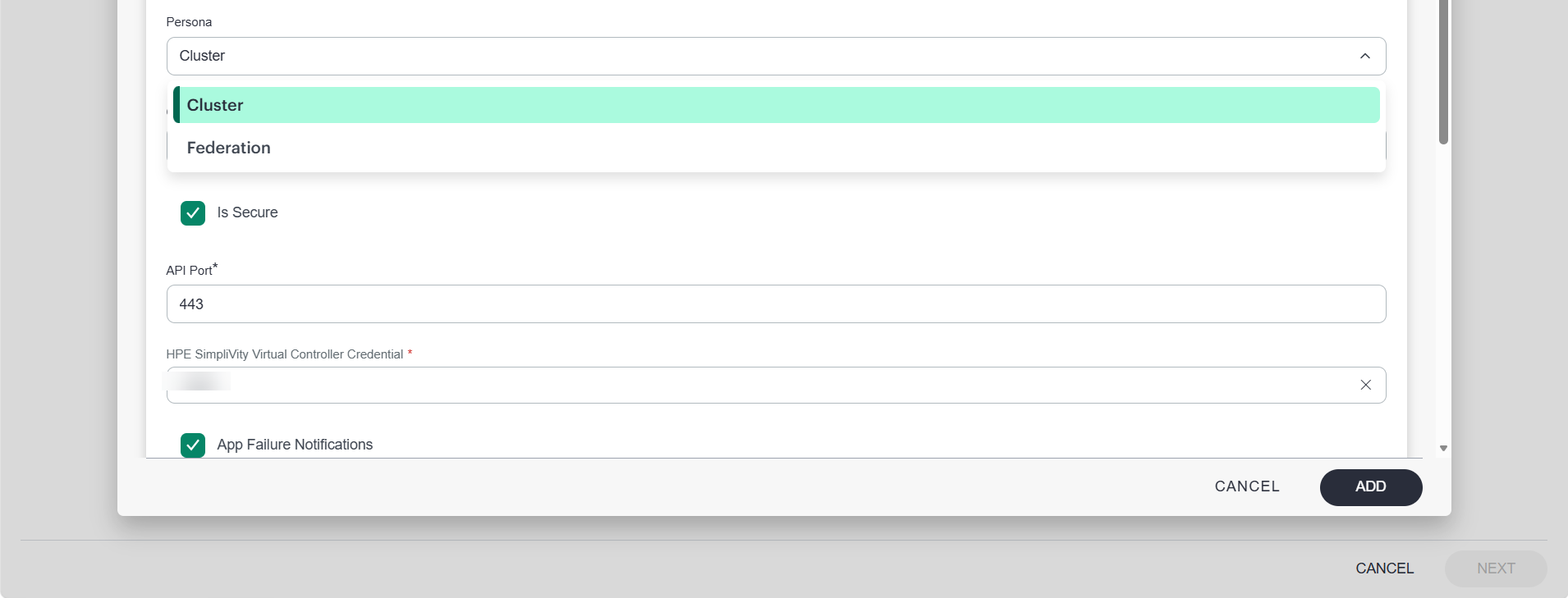
| Persona | Specifies the persona type for configuration, such as Cluster or Federation. Provide Cluster name, if Cluster is selected.Note:The Federation persona can discover resource information across all clusters that are part of the federation, whereas the Cluster persona can discover resources only within selected cluster. |
| HPE SimpliVity Virtual Controller Credential | Select the Credential from the drop-down list. (Optional): Click + Add to create a credential. The ADD CREDENTIAL window is displayed. Enter the following information.
|
Notes:
- By default the Is Secure checkbox is selected.
- IP Address and Port should be accessible from Gateway.
- Select the following:
- App Failure Notifications: if turned on, you will be notified in case of an application failure that is, Connectivity Exception, Authentication Exception.
- Select the following Custom Attribute:
| Functionality | Description |
|---|---|
| Custom Attribute | Select the custom attribute from the drop down list. |
| Value | Select the value from the drop down list. |
Note: The custom attribute that you add here will be assigned to all the resources that are created by the integration. You can add a maximum of five custom attributes (key and value pair).
- In the Native Types section, select the native types to be discovered.
- In the DISCOVERY SCHEDULE section, select Recurrence Pattern to add one of the following patterns:
- Minutes
- Hourly
- Daily
- Weekly
- Monthly
- Click ADD.
The configuration is saved and displayed on the configurations page after you save it.
Note: From the same page, you may Edit and Remove the created configuration.
- Under the ADVANCED SETTINGS, Select the Bypass Resource Reconciliation option, if you wish to bypass resource reconciliation when encountering the same resources discovered by multiple applications. Note: If two different applications provide identical discovery attributes, two separate resources will be generated with those respective attributes from the individual discoveries.
- Click NEXT.
- (Optional) Click +ADD to create a new collector. You can either use the pre-populated name or give the name to your collector.
- Select an existing registered profile.
- Click FINISH.
The integration is installed and displayed on the INSTALLED INTEGRATION page. Use the search field to find the installed integration.
Modify the Configuration
- See Modify an Installed Integration or Application article.
Note: Select HPE SimpliVity.
View the HPE SimpliVity Details
To discover resources for HPE SimpliVity:
- Navigate to Infrastructure > Search > STORAGE > HPE SimpliVity. The HPE SimpliVity page is displayed
- Select the application on the HPE SimpliVity page
- The RESOURCE page appears from the right.
- Click the ellipsis (…) on the top right and select View Details.

- Navigate to the Attributes tab to view the discovery details.
- Click the Metrics tab to view the metric details for HPE SimpliVity.
View resource metrics
To confirm HPE SimpliVity monitoring, review the following:
- Metric graphs: A graph is plotted for each metric that is enabled in the configuration.
- Alerts: Alerts are generated for metrics that are configured as defined for integration.